Published on Prostir
TPS Agent
AI teleprompter script formatter that converts finished text into valid TPS TelePrompterScript without rewriting the source copy.
Published on Prostir
AI teleprompter script formatter that converts finished text into valid TPS TelePrompterScript without rewriting the source copy.
Connection link
https://tps.ai.prostir.build/mcp
This one link is everything your app needs. Paste it into anything that can connect to outside tools.
No install, no new account. It works inside the app you already chat in.
Pick your app below and follow the pictures. You do not type anything.
Nothing to sign in to — connect and start asking.
Type your question where you always chat. The answer comes back there.
Pick the app you use and follow the pictures. It takes about a minute.
It uses the connection link above — you do not need to type it anywhere else.
Open ChatGPT settings and go to Plugins. Developer mode is the last row in the list.
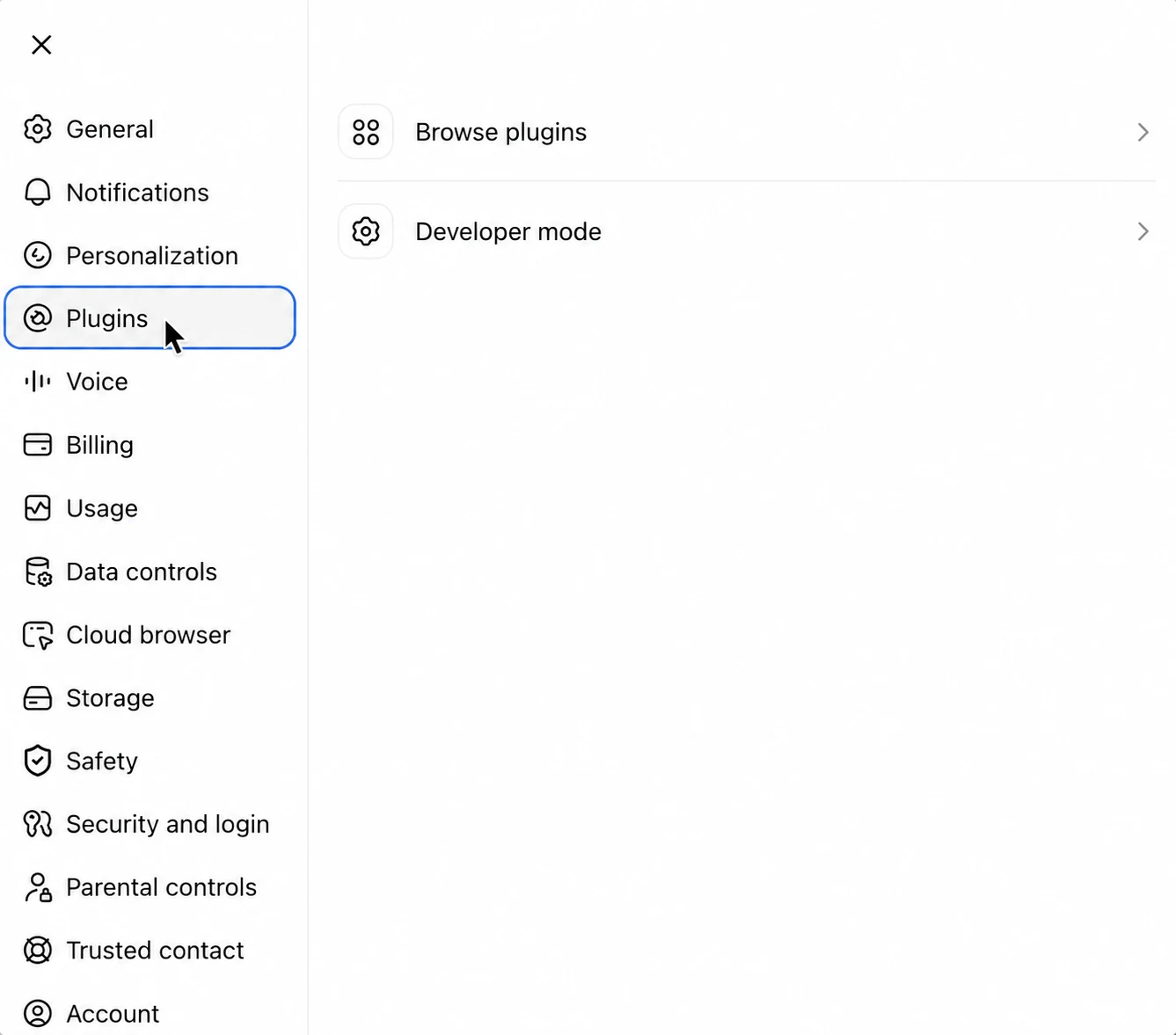
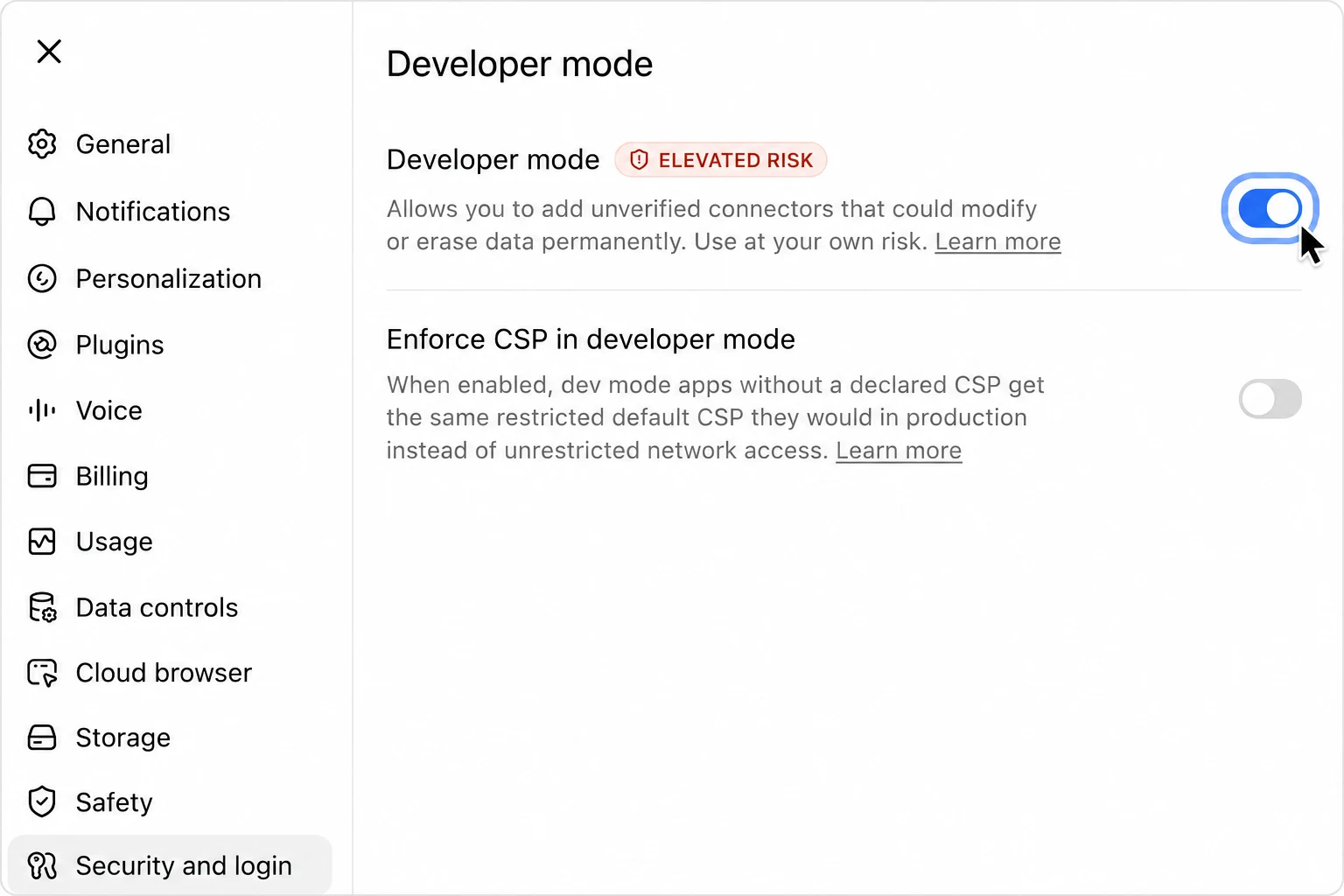
Turn Developer mode on — ChatGPT will not accept an outside tool without it.
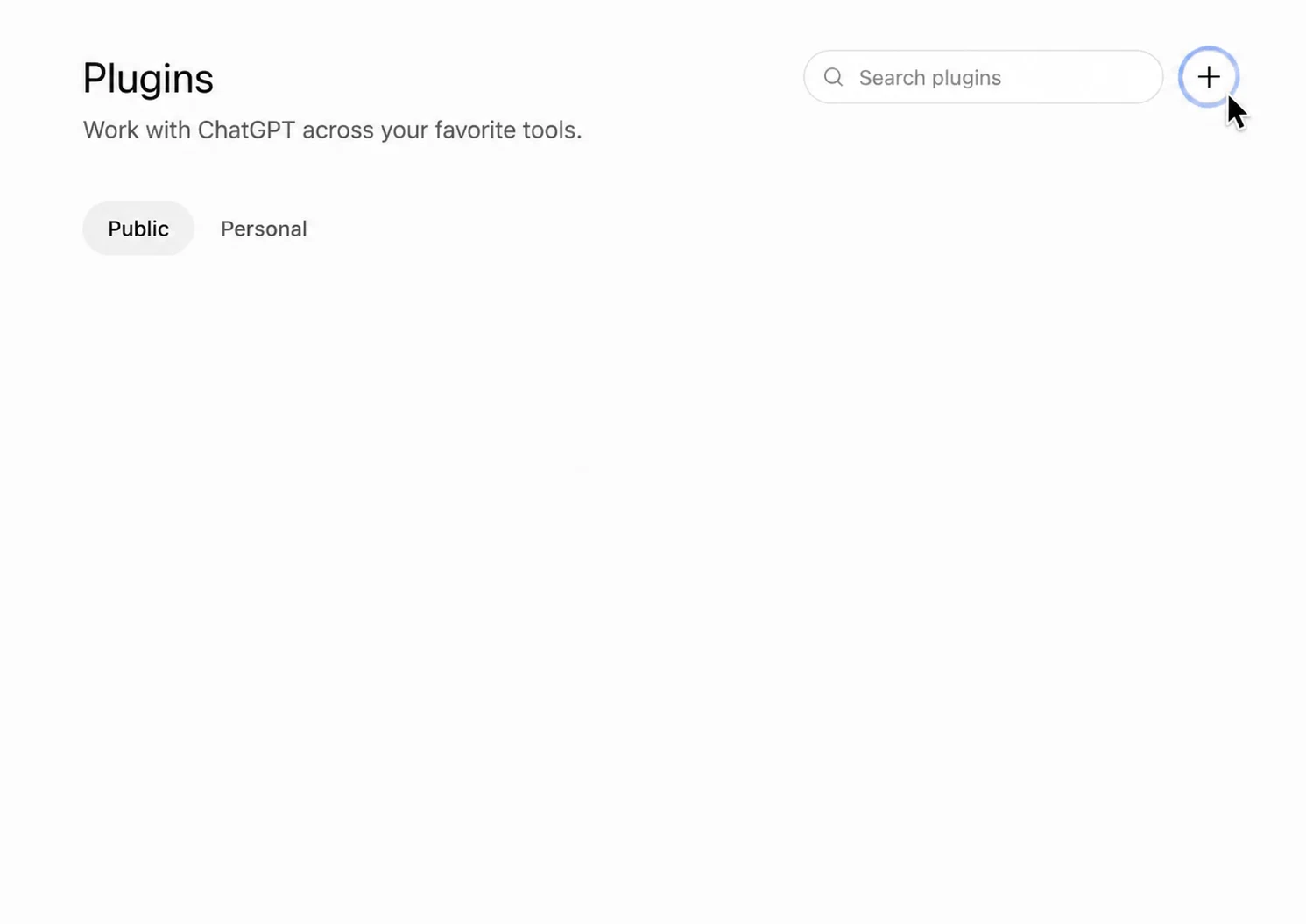
Back on the Plugins page, press the plus button next to the search field.
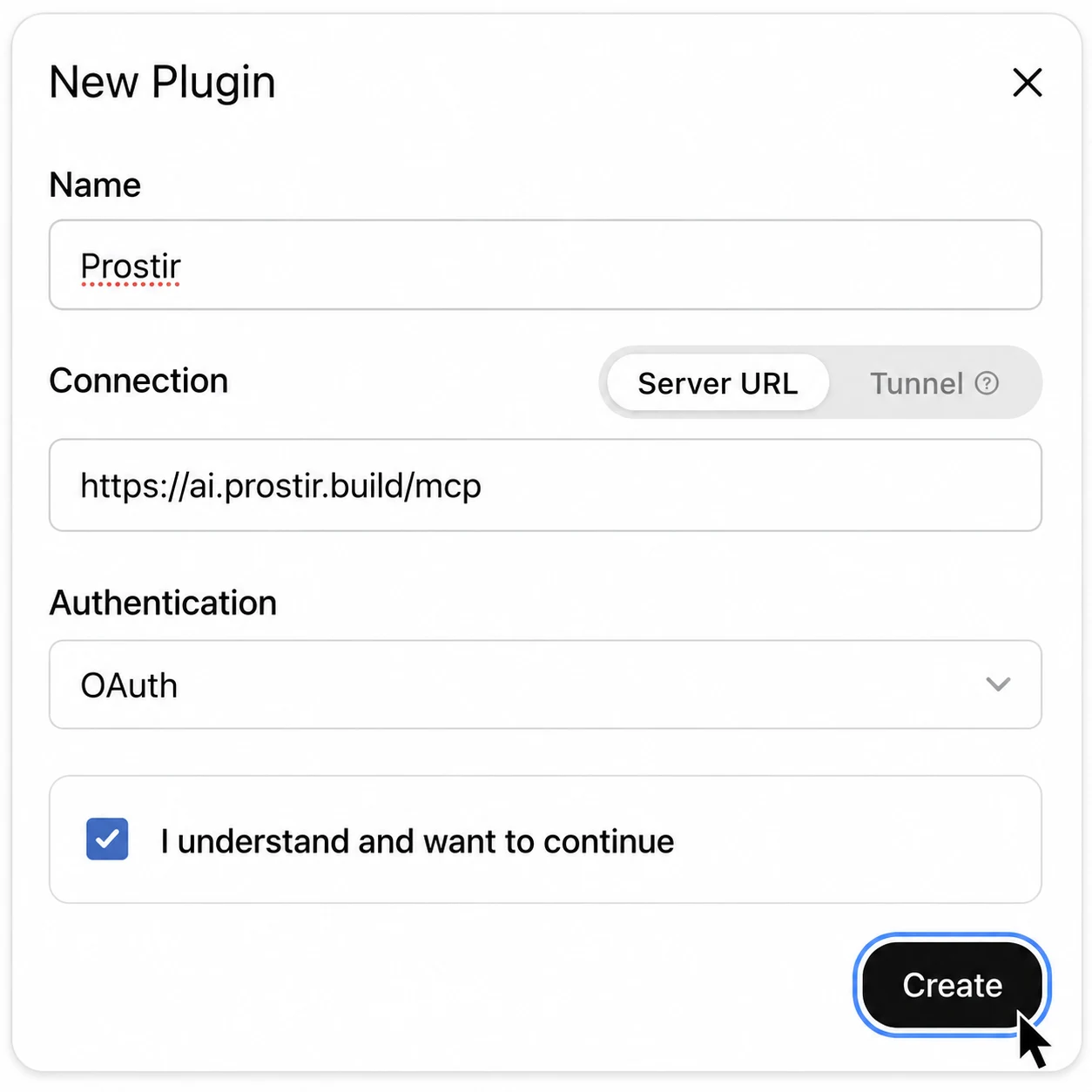
In the New Plugin window, keep Connection set to Server URL and Authentication set to OAuth.
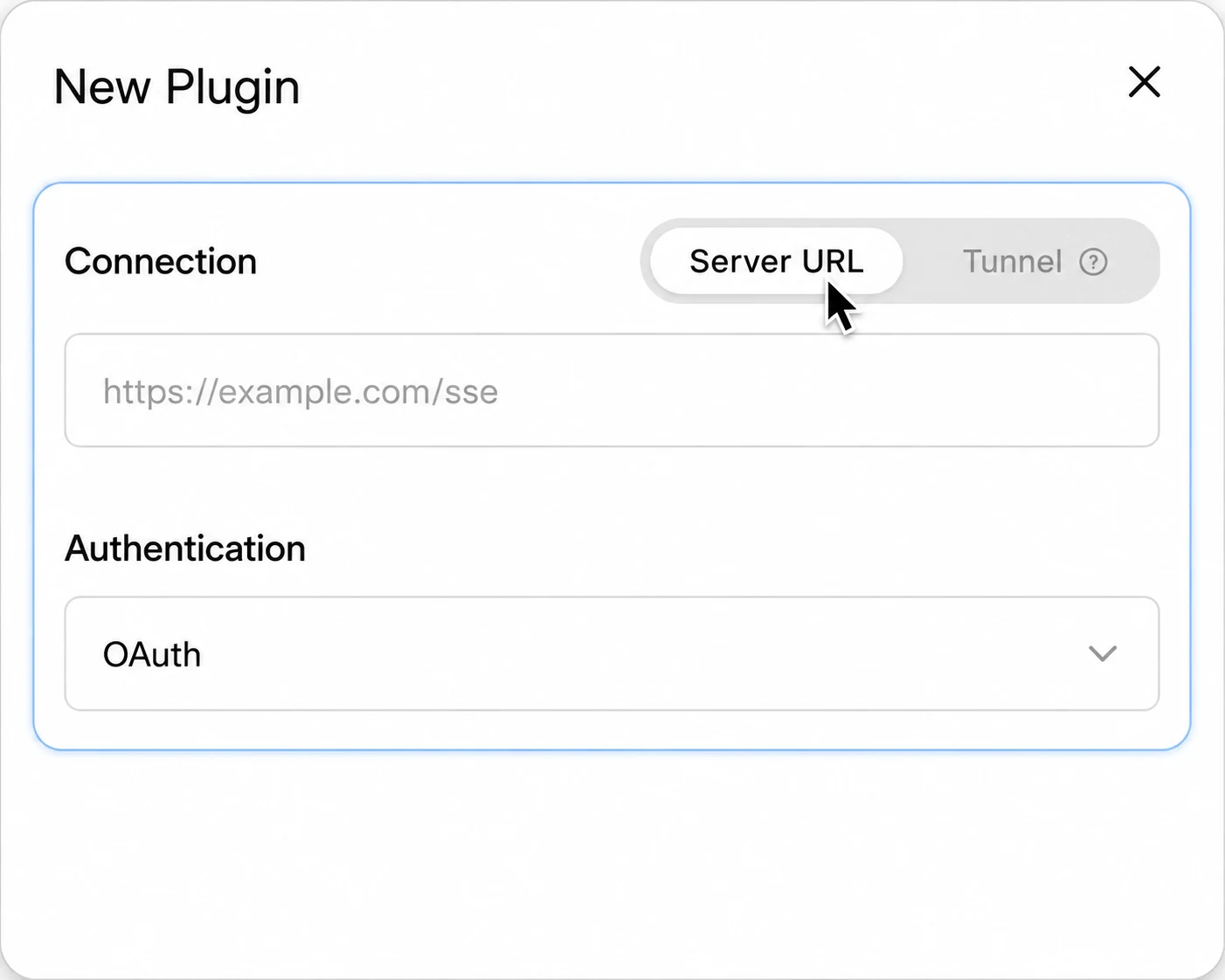
Name it TPS Agent, paste the connection link, tick the confirmation box, then press Create and sign in.
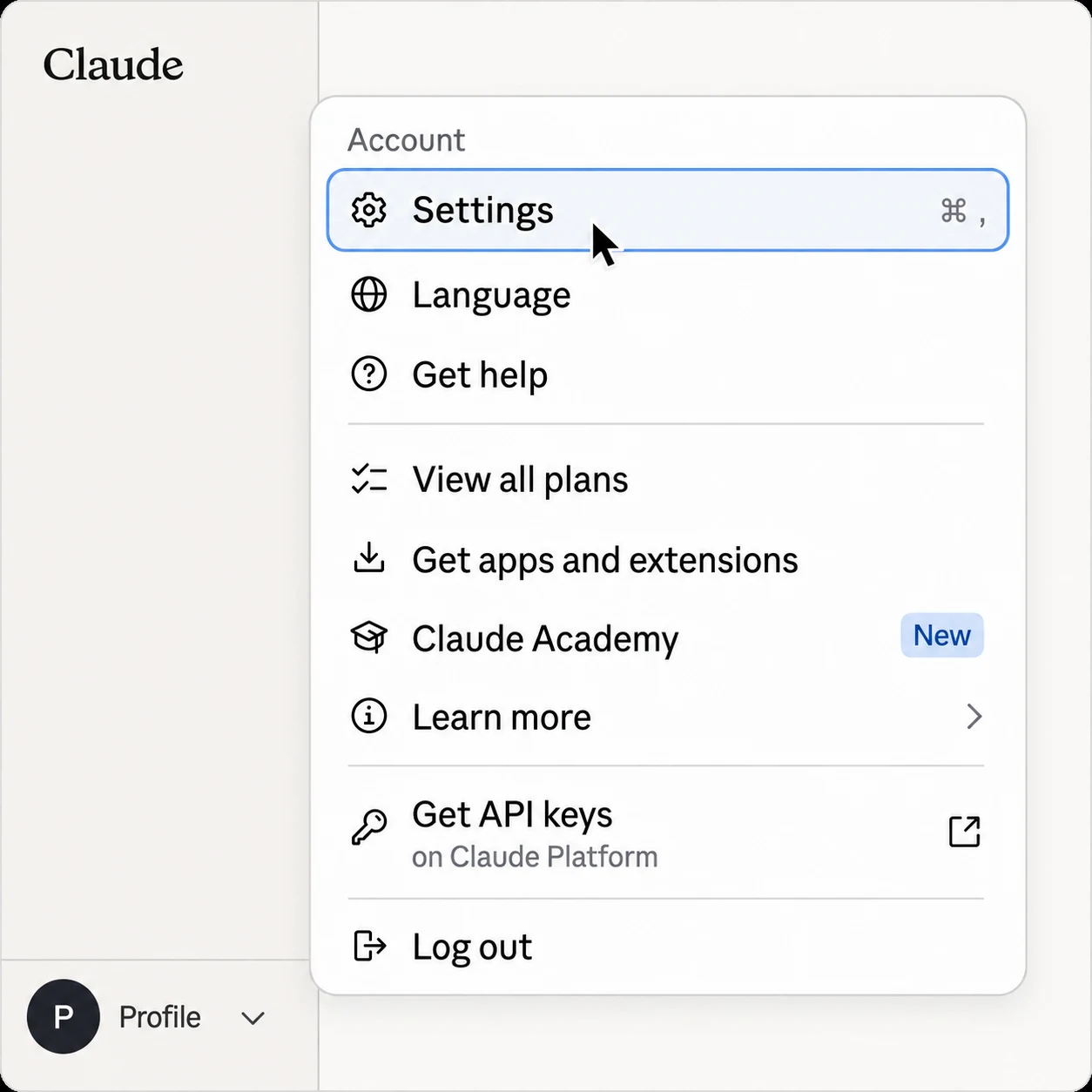
In Claude, open the account menu at the bottom of the sidebar and choose Settings.
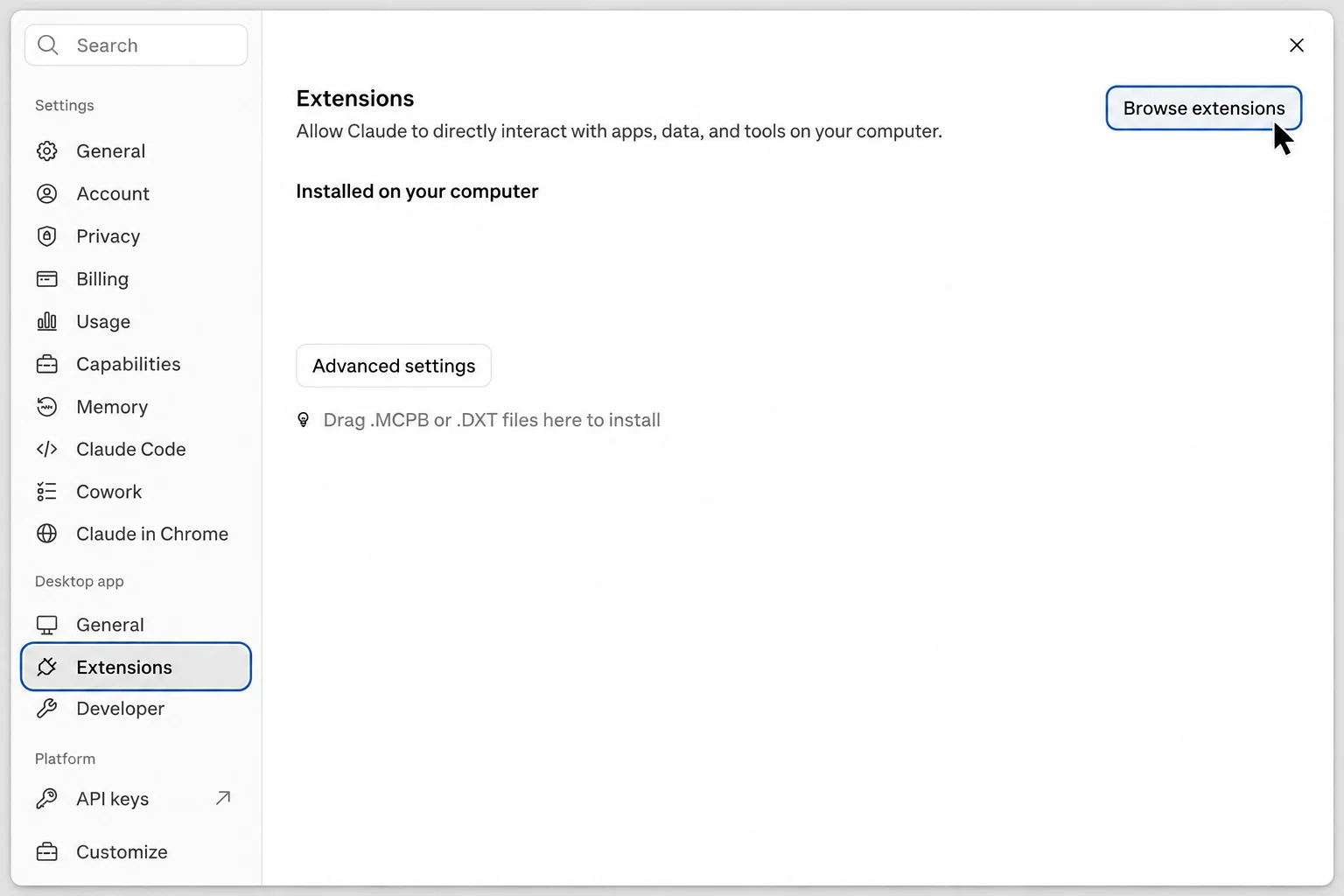
Under Desktop app, open Extensions and press Browse extensions.
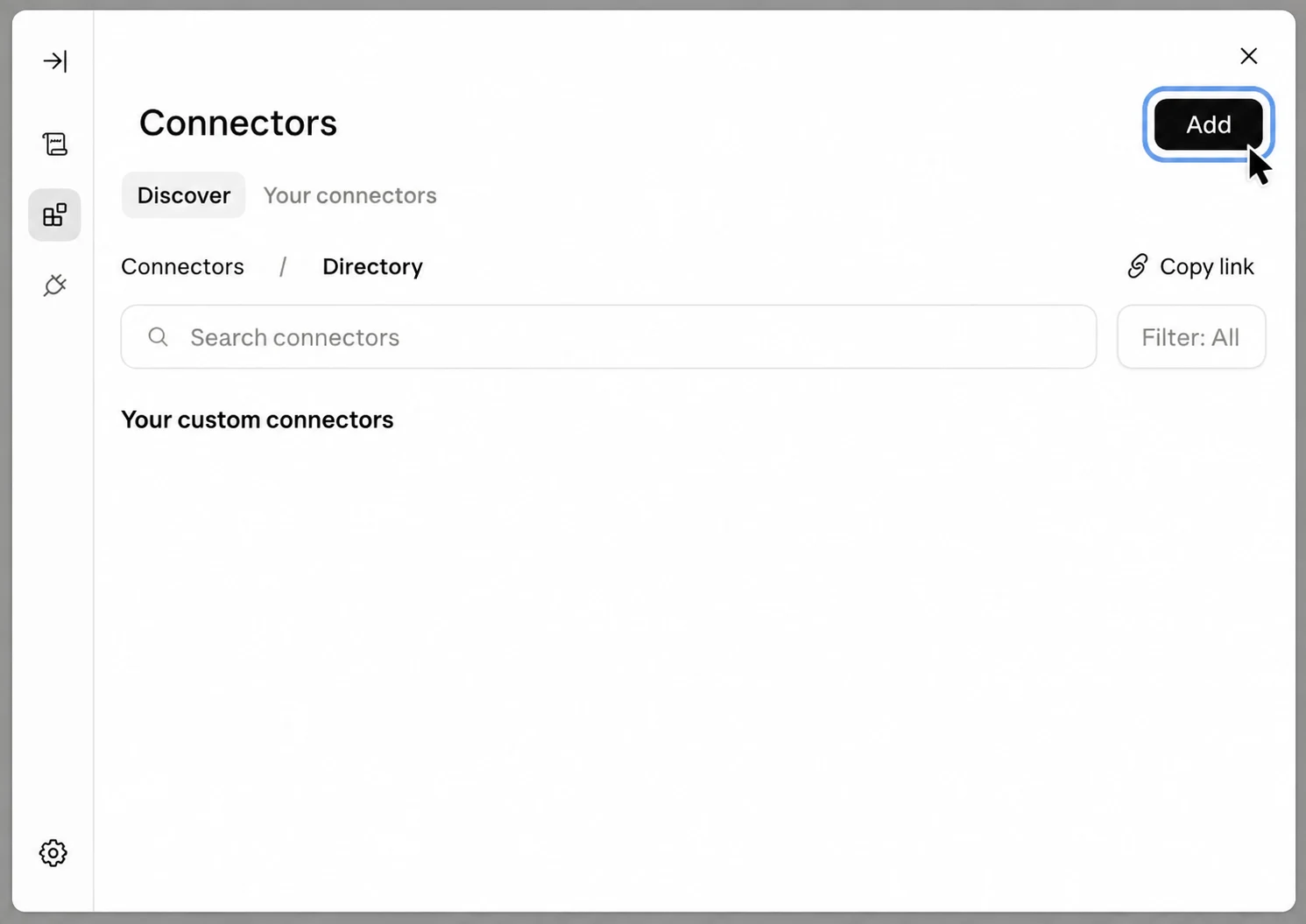
In Connectors, press Add and choose Add custom connector.
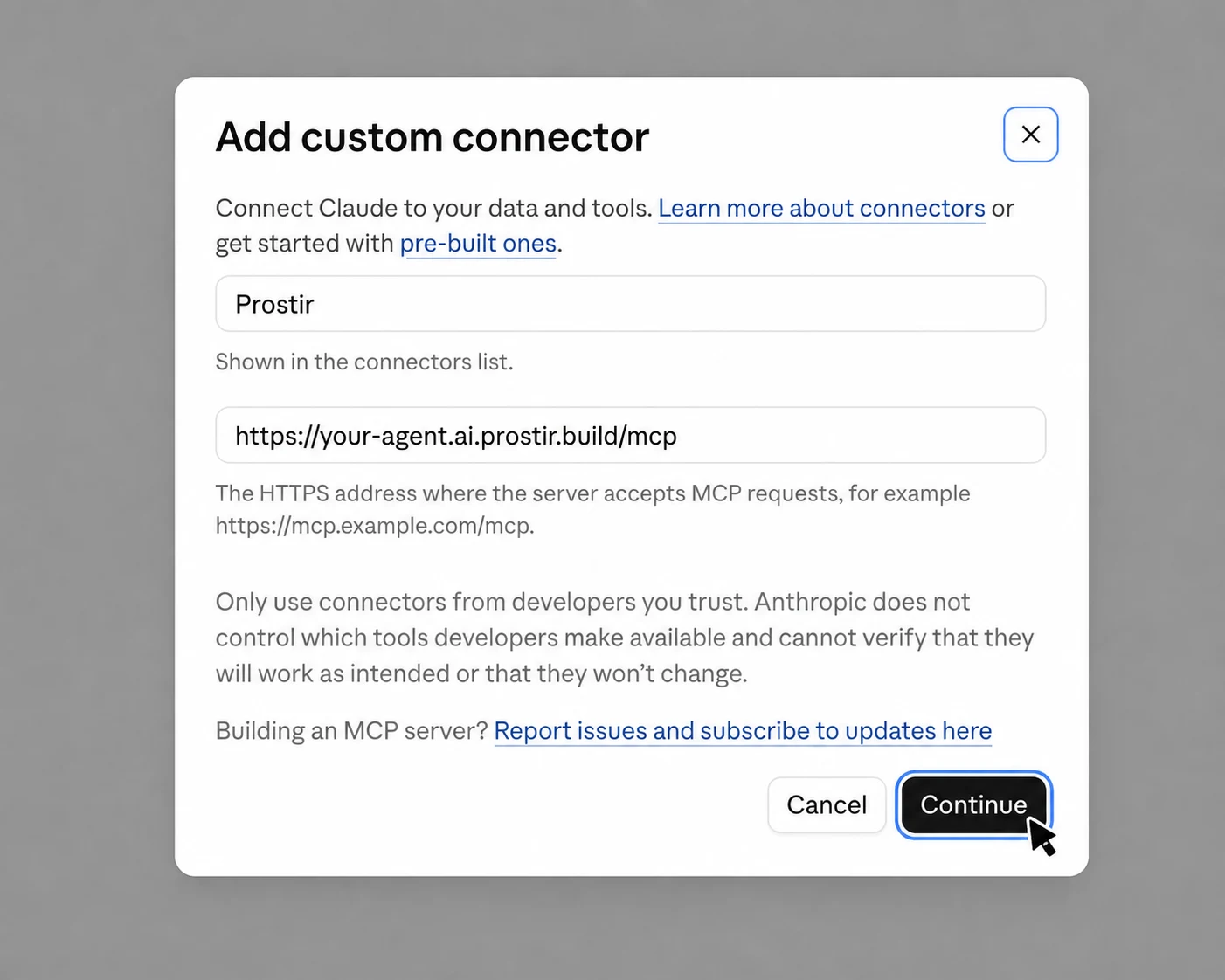
Name the connector TPS Agent, paste this connection link, and press Continue.
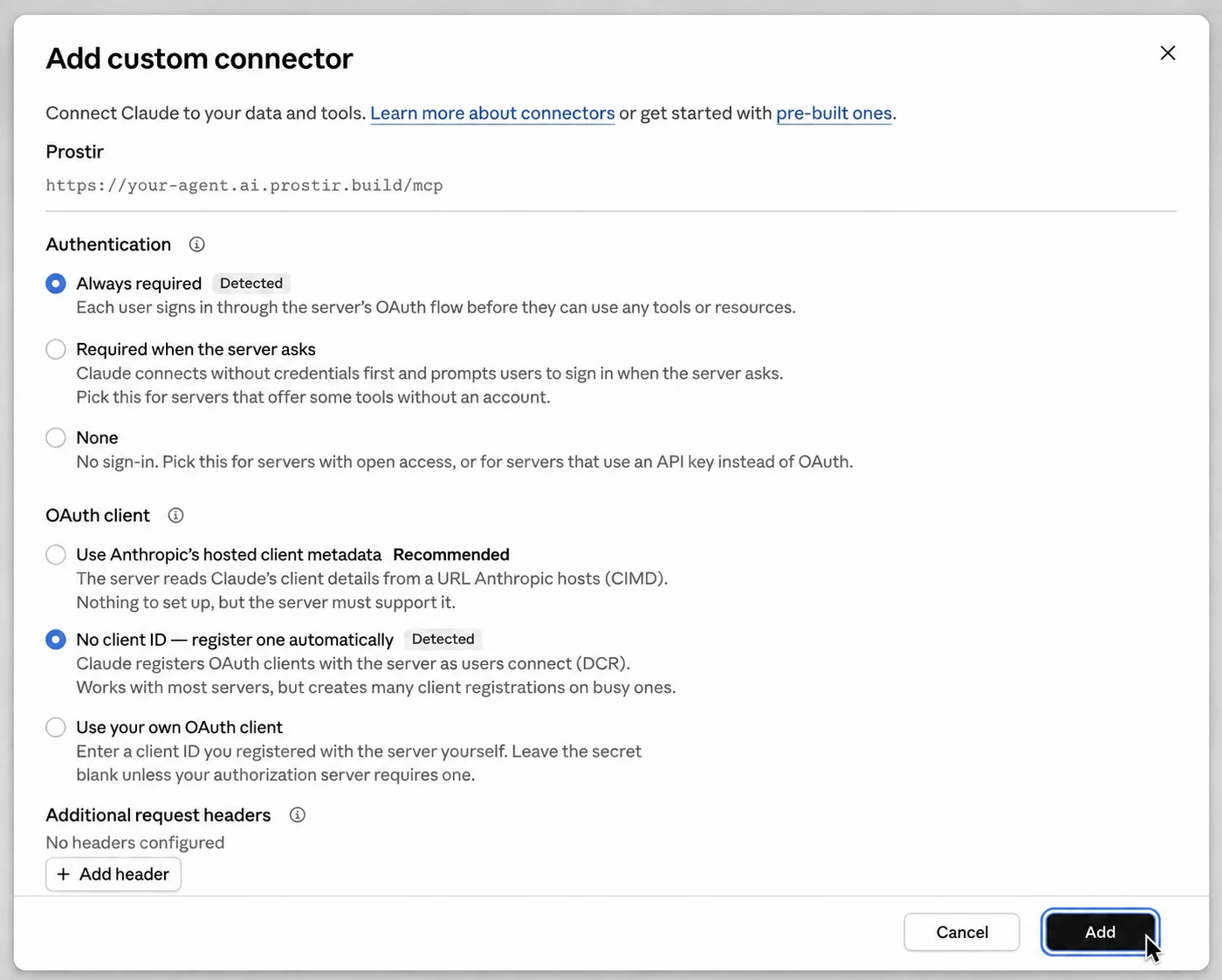
Keep Claude's detected Authentication and OAuth client choices, leave Additional request headers empty, then scroll down and press Add.
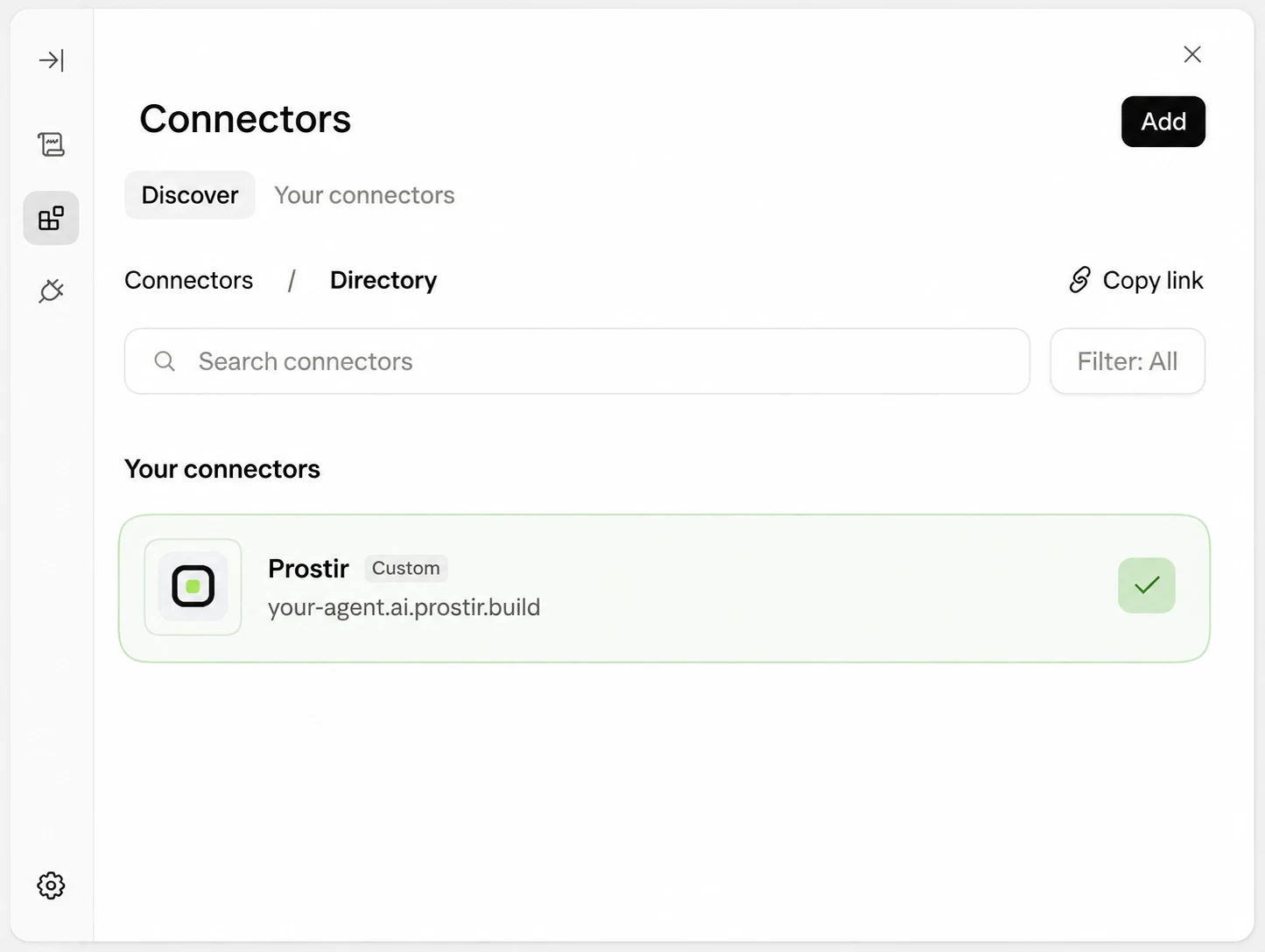
Complete the Prostir sign-in if Claude opens it. A green check marks the connector as connected.
Create a .vscode/mcp.json file in your project, or open the one you already have.
Paste the settings block above and save the file.
Start the server from your editor, then sign in in the browser window that opens.
{
  "mcpServers": {
    "tps": {
      "type": "http",
      "url": "https://tps.ai.prostir.build/mcp"
    }
  }
}
Anything that can connect to outside tools will work. Copy the connection link above and paste it where that app keeps its connections.
{
  "mcpServers": {
    "tps": {
      "type": "http",
      "url": "https://tps.ai.prostir.build/mcp"
    }
  }
}No. The assistant runs on Prostir. You add a connection inside the app you already use, and from then on it is simply there when you type.
You sign in through Prostir, so the assistant never sees your password. You can remove the connection from your app whenever you like.
Any app that can connect to outside tools will work. Copy the connection link and paste it wherever that app keeps its connections.
Konstantin Semenenko publishes and supports this assistant. Prostir hosts it and handles the payment.
Ready when you are.
What is this page?
TPS Agent is an assistant hosted on Prostir. Add it to the AI app you already use — its connection link is https://tps.ai.prostir.build/mcp.